

Design Drawing Board
Shenzhen Huading Star Technology Co., Ltd. has evolved into a high-tech enterprise specializing in the development of electromagnetic touch screens, metal grid capacitive touch screens, 3D printed capacitive touch films, electromagnetic-capacitive hybrid touch screens, and stylus products. Leveraging its core competencies in chip R&D, circuit design, module engineering, manufacturing processes, and reliability testing, the company offers comprehensive touch product solutions tailored to customer needs.
Quality Assurance
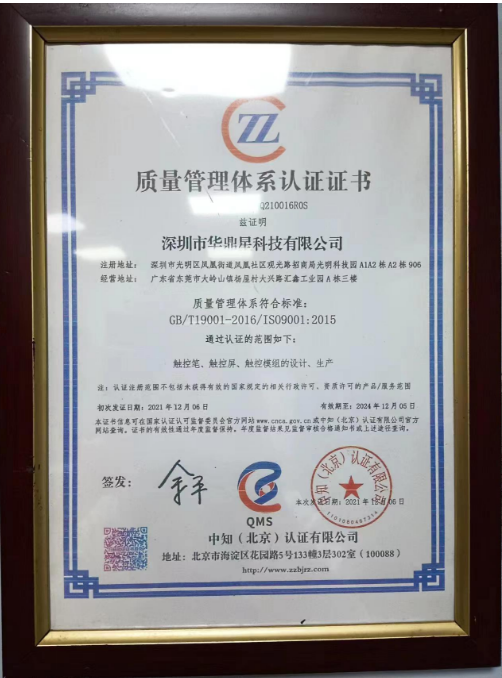
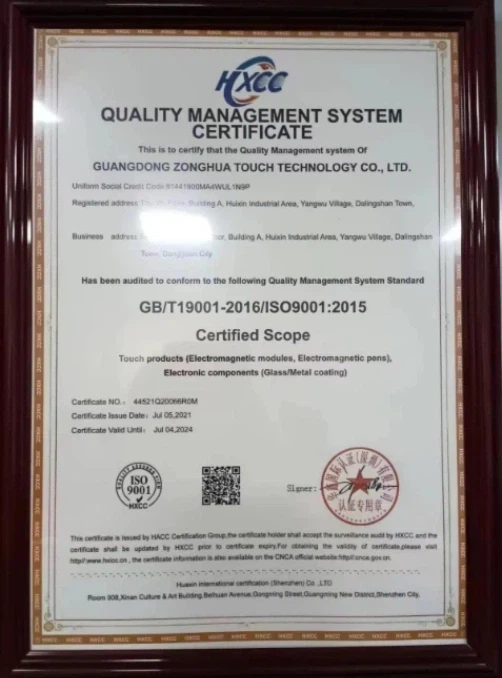
Each shipment is accompanied by a detailed quality inspection report, ensuring transparency and addressing any concerns regarding product quality.
Research and Development Capabilities
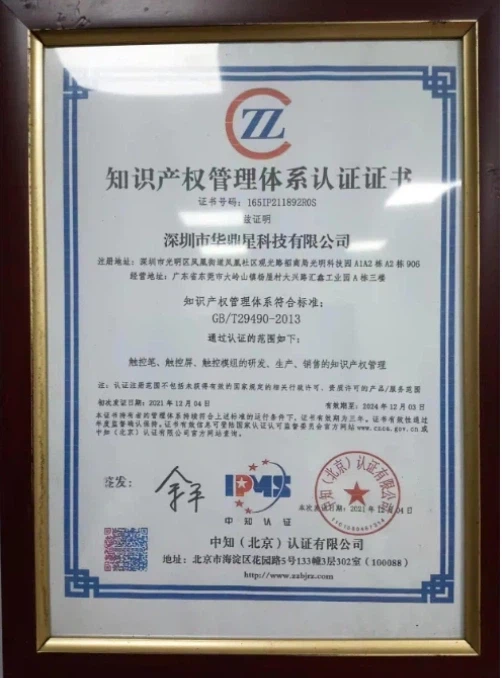
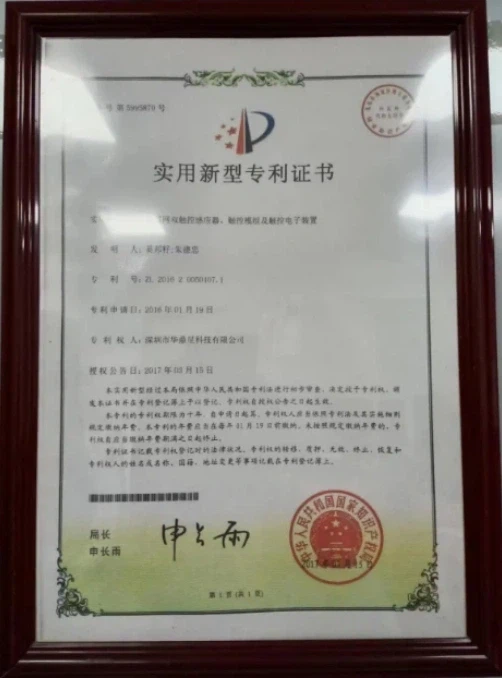
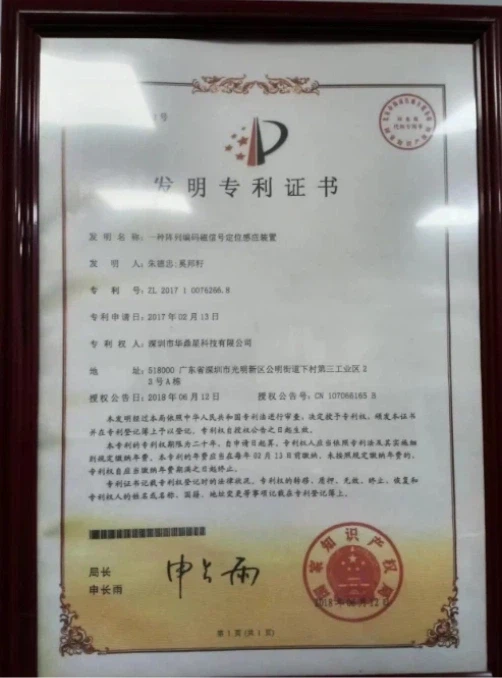
The company holds numerous domestic and international invention patents, demonstrating robust R&D capabilities and promising market potential.
Efficient Transportation Solutions
Through strategic partnerships with leading maritime, air freight, and logistics providers, we deliver optimized transportation solutions that meet your specific requirements.
OEM & ODM Available
We can accept OEM and ODM service, custom your own size/shape.
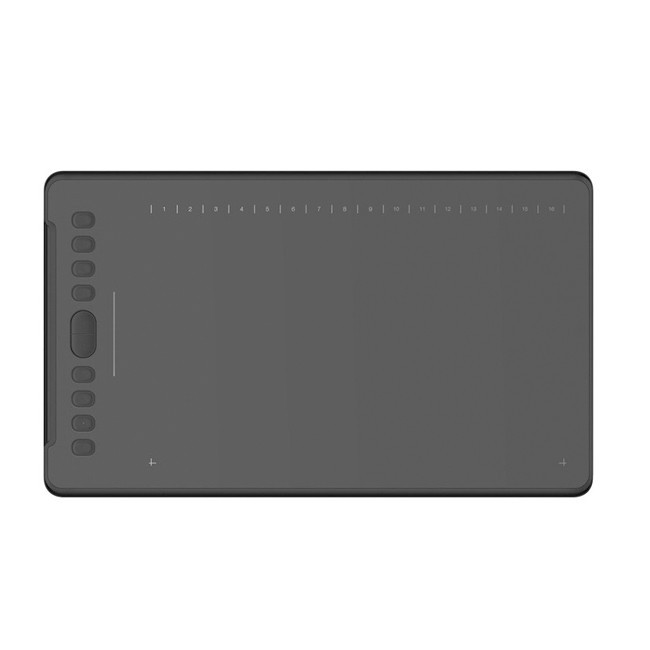
Parameter
|
Project |
Content |
|
Digital board |
USB |
|
Induction mode |
Passive electromagnetic |
|
Pressure rating |
Level 8192 |
|
Induction height |
10mm induction height |
|
Resolution |
5080LPI |
|
Reading speed |
266 points per second |
|
System compatibility |
Windows 7/8/8.1/10, MAC 10.12 or later, Android 6.0 and later |
Advantages of Design Drawing Board

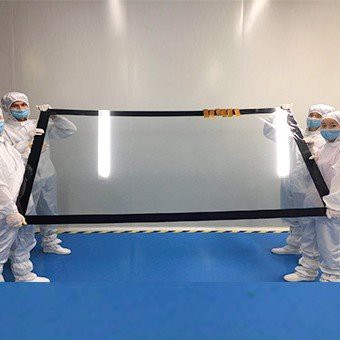
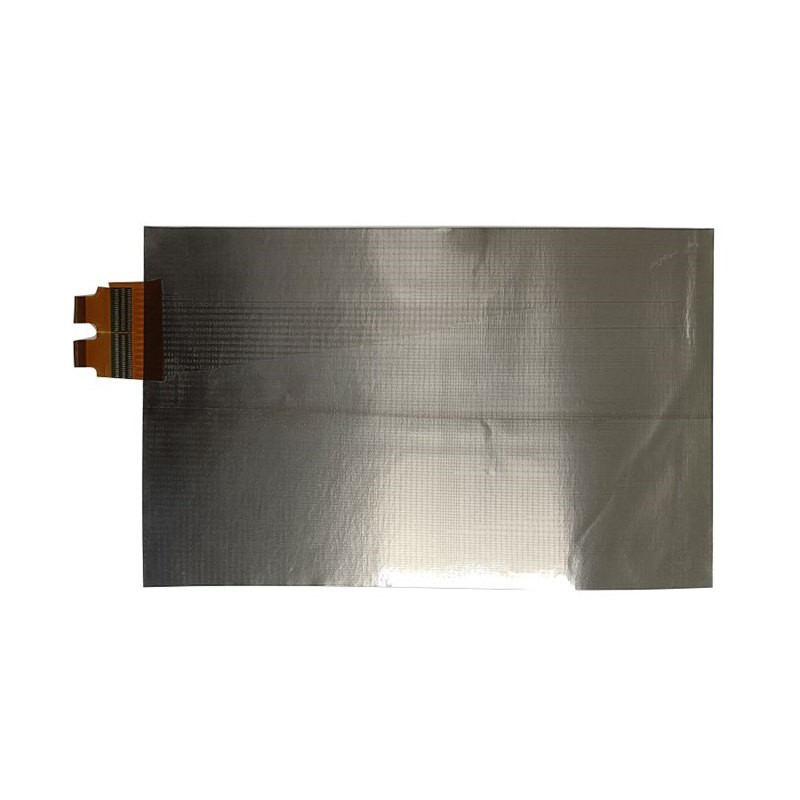
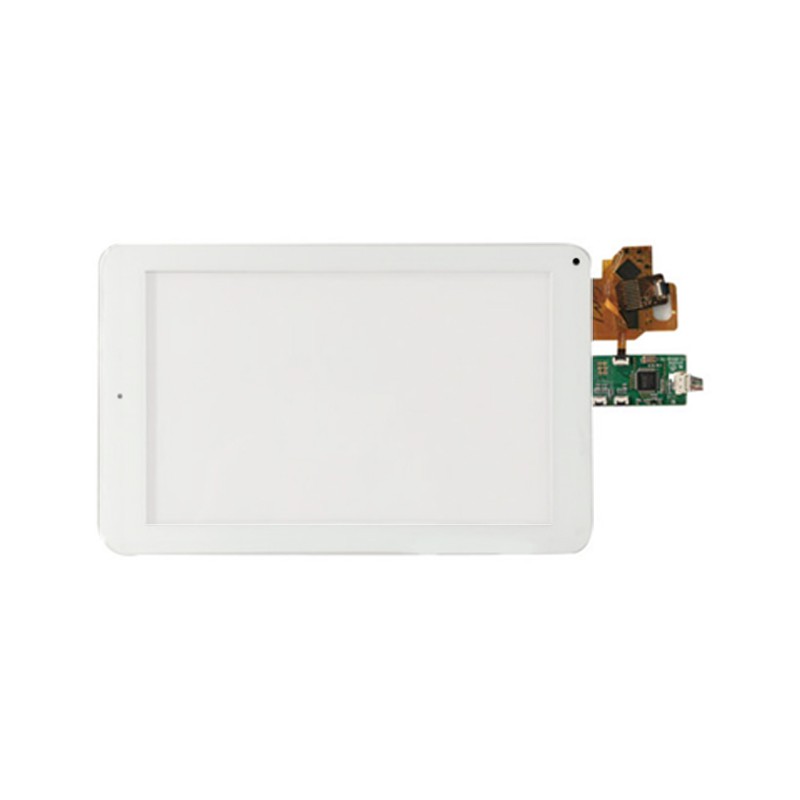
Detailed images
Drawing on a design drawing board produces much smoother and detailed images. The stylus pen that comes with a design drawing board is capable of producing images that are visually stunning. The varying pressure applied to the pen results in the creation of lines of various depth and intensities. A good artist knows how to work with a pen so that he can get done a detailed and smooth design.
Lightweight
A design drawing board is a lightweight device that you can carry around easily. It is much smaller in size compared to your laptop you wouldn't have any trouble taking it to place with you. If you have a favorite spot where your creativity is ignited or you are traveling to someplace, you can carry your design drawing board and sketch on them whenever and wherever you feel like it.
Different sizes
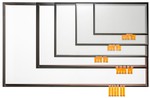
A design drawing board comes in various sizes and you can choose the one that fits your needs perfectly. The different sizes are a matter of the active area for drawing on your design drawing board. There are a lot of design drawing boards in the market with different sizes. Be sure to pick one that is best for your drawing requirements
No stress on hands
Using a design drawing board reduces the repetitive stress on the hand which results in a condition called carpal tunnel syndrome.
Connect to a computer
You can connect your design drawing board to a computer using USB and can store all your artworks digitally. It is also compatible with almost every software and works on both Windows as well as MAC.
Easy to use
Anyone can learn to use a design drawing board and is more or less the same as drawing on a paper with a pen. It also makes correcting mistakes easier and is ergonomically designed to meet the requirements of both left-handed and right-handed users.
Steps for Setting up the Design Drawing Board
Initial Setup Process
Start by opening the package and checking the contents. Most drawing tablets come with the tablet itself, a stylus, a USB or wireless connection device, and possibly a driver installation CD or USB stick. Ensure you have all the components. Refer to the instruction manual for any device-specific guidelines. It’s essential to connect and test the pieces before moving on to software installation.
Connecting the Tablet to Your Computer
Begin by deciding whether you will use a USB-C, traditional USB, or Bluetooth connection. For USB connections, plug the cable into your computer and the tablet. If using Bluetooth, pair the tablet with your device through the operating system’s Bluetooth settings. For Windows users, a prompt may appear, asking to install standard drivers.
Installing Necessary Drivers
Go to the manufacturer’s website—And download the latest drivers compatible with your operating system. Execute the downloaded file and follow on-screen instructions. After installation, restarting your computer ensures that the drivers integrate properly with the system.
Configuring Tablet Settings for Optimal Use
Open the driver software, and navigate to the settings panel. Here, you can customize button functions, pen sensitivity, and screen mapping. Adjust the sensitivity of the stylus to match your drawing style. Set up custom shortcuts for frequently used commands to improve workflow. Review additional settings for multi-touch functionality and other advanced features, tailoring the tablet to your preferences. Regularly update the drivers and firmware to keep the tablet working smoothly.
Efficient Use of Design Drawing Board Precautions
When drawing with your wrist, you don't need a large drawing tablet because the average pen stroke distance at this point is about 10 cm. When it comes to large strokes that require arm strength, a relatively large drawing board can provide a more comfortable drawing experience.
Pressure sensitivity helps you control the thickness of the drawn lines when drawing on the drawing tablet. When using traditional pencils and brushes, the different pressures we apply to the paper result in different types of shading. This is how pressure sensitivity works, the same on a drawing tablet.
To prepare for drawing, we can start by checking the friction between the drawing tablet and the stylus to prepare for drawing. Some nibs can increase friction, so if you feel that the stylus is slippery and the friction between it and the drawing tablet is too low, you can change the stylus to a suitable one. Also, the thickness of the pen can affect the drawing experience, especially when there is a need to draw for a long time.
Different drawing tablets are equipped with different shortcut keys to achieve different software functions. Some drawing tablets have pre-programmed buttons, touch rings, and radial dials that can be used to access specific features and shortcuts. While you can use the tablet for any application, you may also configure the tablet based on the drawing software you're using.
Don't forget to use a screenprotector for your drawing tablet. The glossy screen protector is suitable for those who like to draw on a smooth tablet. Having a screen protector also helps you glide on the tablet without much resistance. Some prefer matte screen protectors. Matte screen protectors shield tablet screens from scratches. Besides, it provides a textured surface to make you feel better when drawing on the tablet.
Packaging and Shipping
|
Packaging |
Packed with carton box and foam material |
|
Shipping |
We will help you to choose the best shipping way according to your detail requirements. By sea, by air, or by express, etc. |
Our Factory
Shenzhen Huading Star Technology Co., Ltd. founded in 2012, has production bases in Daling Mountain, Dongguan, and Wan'an County, Jiangxi Province, with a total plant area of 15,000 square meters.

Honor And Qualification
At present, the company has obtained more than 50 patents: 23 invention patents, 22 utility model patents, and 11 soft.
Our Partners